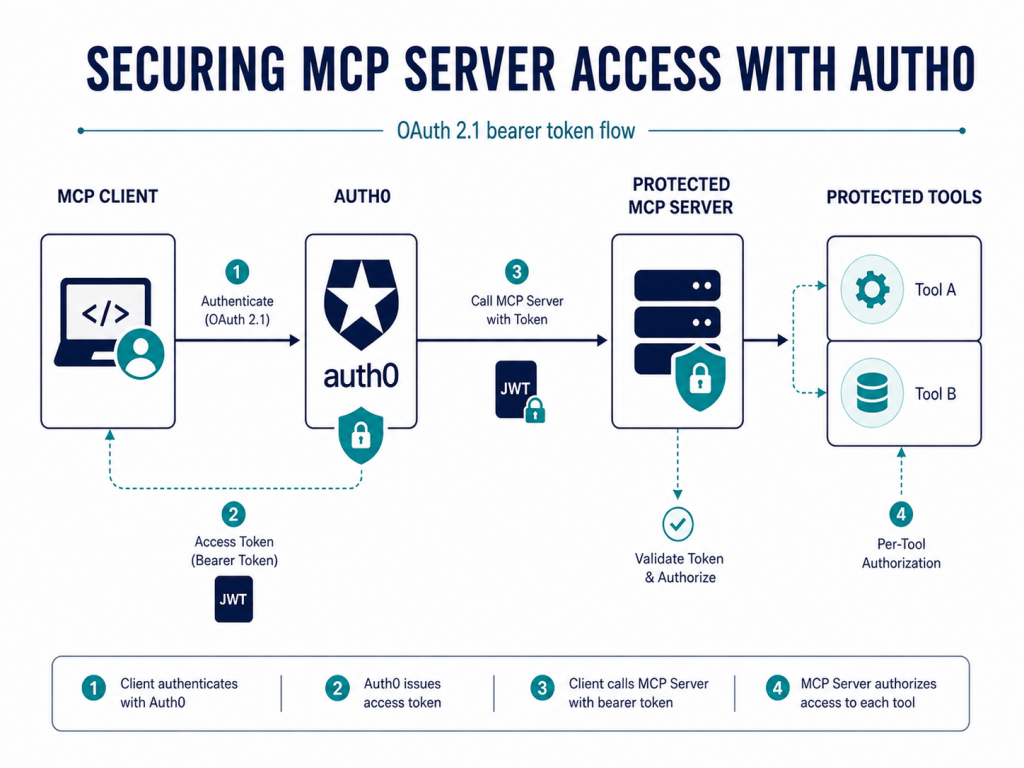
This lab demonstrates how to secure an MCP server with Auth0 using OAuth 2.1 bearer tokens and enforce least-privilege authorization at the individual tool level through OAuth scopes.
Configure the API
Create a Custom API in Auth0 to represent the protected MCP resource server.
Applications > APIs > Identity Access MCP API > Settings
API configuration
- Name:
Identity Access MCP API - Identifier:
https://mcp.auth-lab.com/identity-access - JWT Profile:
RFC 9068 - Signing Algorithm:
RS256 - User-delegated access:
Per-app authorization
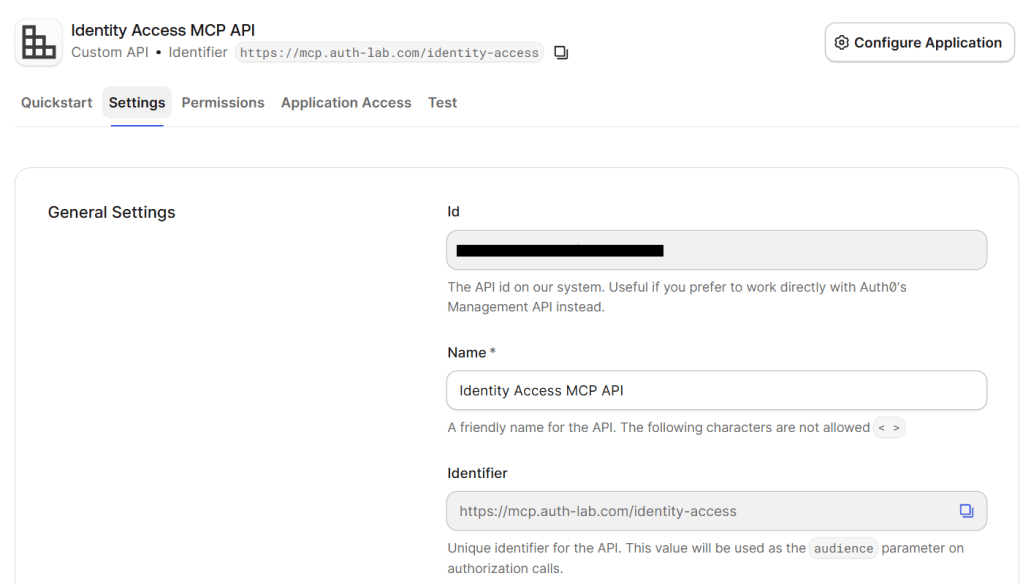
This API identifier is used as the OAuth audience for access tokens issued to the MCP client.
Define API Permissions
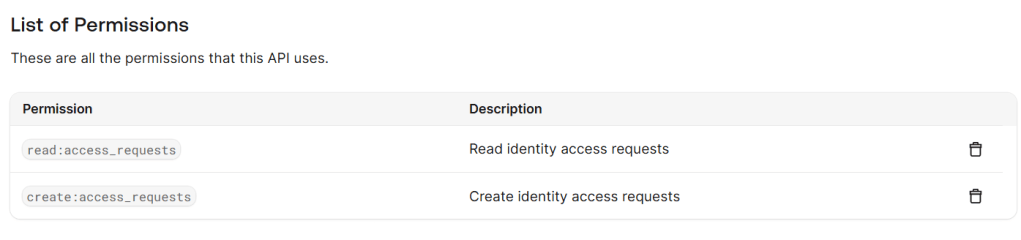
Define granular OAuth permissions for the operations exposed by the MCP server.
Applications > APIs > Identity Access MCP API > Permissions
read:access_requestscreate:access_requests
Configure the Application
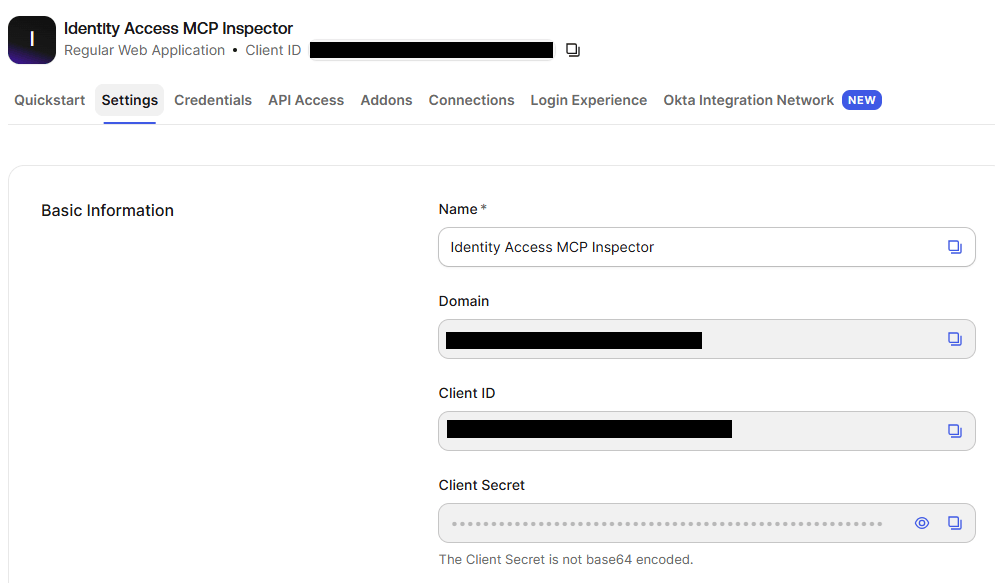
Create a dedicated OAuth client for MCP Inspector. The application will authenticate users through Auth0 and request delegated access to the protected MCP API.
Applications > Applications > Create Application
Name: Identity Access MCP InspectorApplication Type: Regular Web ApplicationOwnership: Third-party (Strict security controls)
Configure Callback URLs
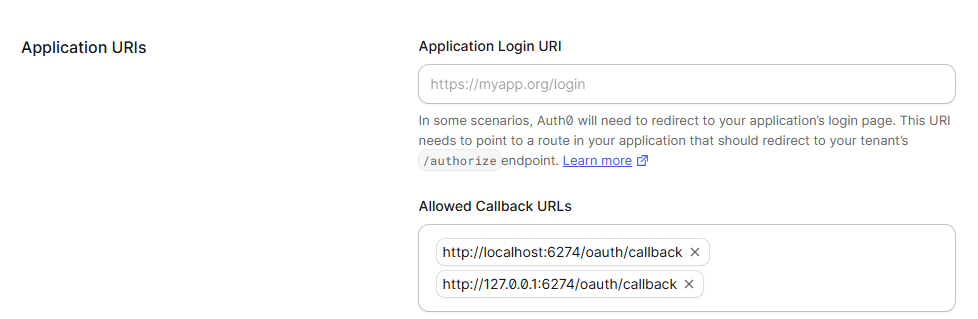
Add the MCP Inspector OAuth callback URLs so Auth0 can redirect the user back to the local client after authentication.
Applications > Applications > “Identity Access MCP Inspector” > Settings > Application URIs
Configure Application Access
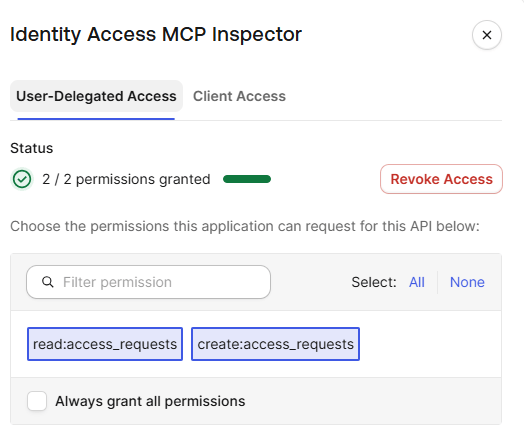
Grant the MCP Inspector delegated access to the API permissions required by the protected MCP tools.
Applications > APIs > “Identity Access MCP API”> Application Access > “Identity Access MCP Inspector” > Edit
Configure the MCP Server
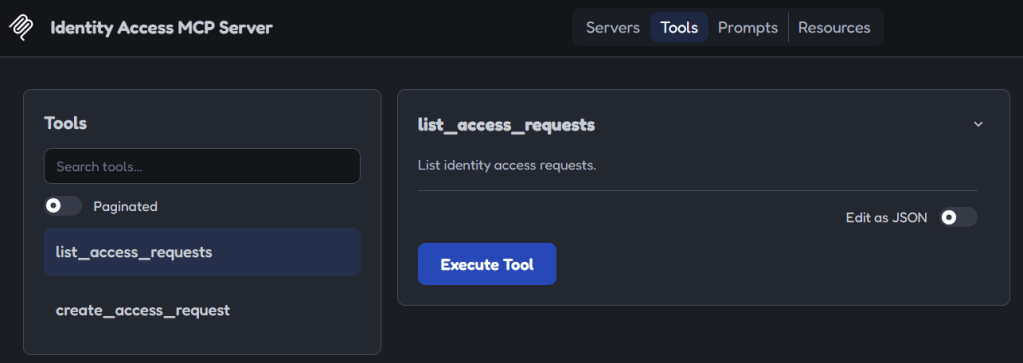
A local FastMCP server is used as the protected resource. It exposes two identity-related tools.
Define the MCP Tools
list_access_requests→ returns mock identity access requestscreate_access_request→ creates a new mock access request
Configure OAuth Protection and Token Validation
Configure the MCP server as an OAuth protected resource and validate Auth0-issued bearer access tokens.
from mcp.server.auth.settings import AuthSettings...mcp = FastMCP( "Identity Access MCP Server", token_verifier=Auth0TokenVerifier(), auth=AuthSettings( issuer_url=AnyHttpUrl(f"https://{AUTH0_DOMAIN}/"), resource_server_url=AnyHttpUrl( f"{MCP_SERVER_URL.rstrip('/')}/mcp" ), required_scopes=[], ),)
Auth0 acts as the authorization server, while the MCP server validates the token before allowing access to protected MCP operations.
Verify OAuth Protected Resource Metadata
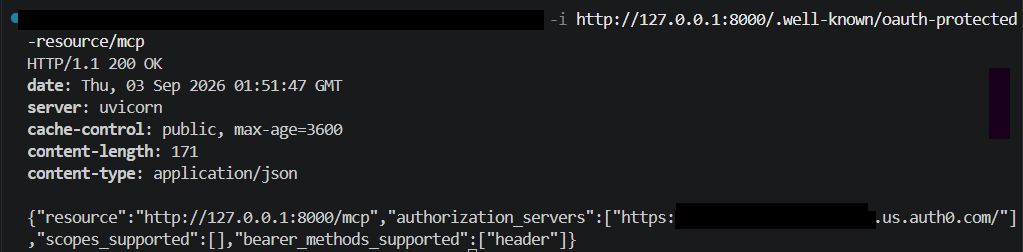
The MCP server exposes OAuth Protected Resource Metadata so clients can discover Auth0 as the authorization server.
Enforce Per-Tool Authorization
Each MCP tool enforces its own OAuth scope, allowing authorization to be applied at the individual tool level.
mcp.tool()def list_access_requests(...): ... require_scope("read:access_requests") ...mcp.tool()def create_access_request(...): ... require_scope("create:access_requests") ...
Test the Authorization Flow
Configure MCP Inspector with the “Identity Access MCP Inspector” credentials, required scopes, and API audience.
MCP Inspector > identity-access-mcp-server > Settings > OAuth Settings
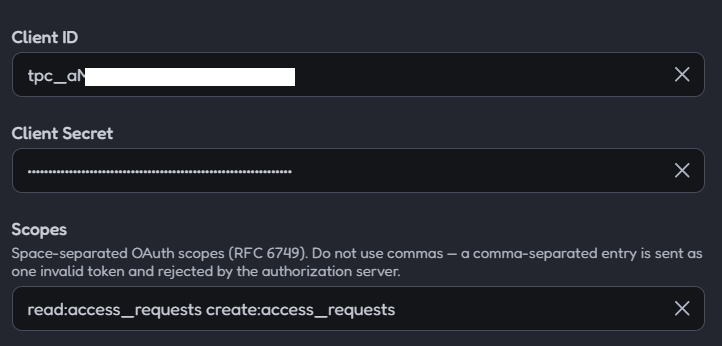
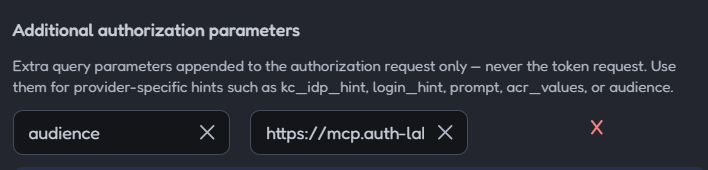
This configuration allows MCP Inspector to request an Auth0 access token for the protected MCP API.
Authenticate with Auth0
Connect the MCP client and authenticate through Auth0 Universal Login
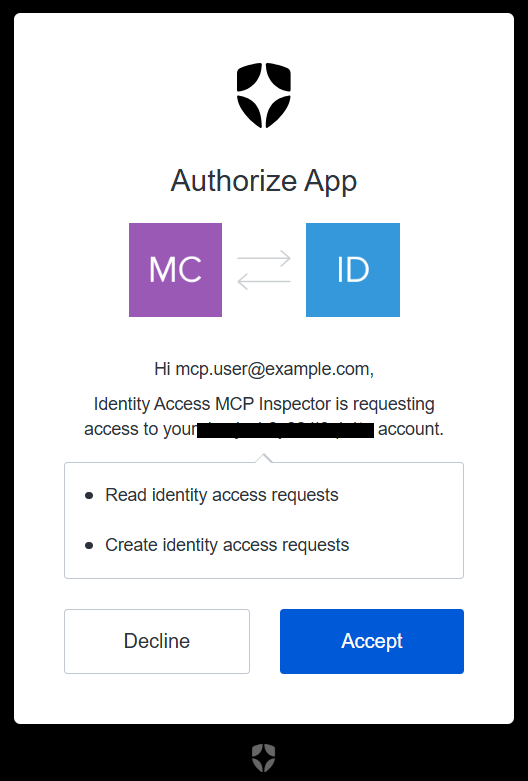
Auth0 presents the requested API permissions to the user before granting delegated access to the MCP client.
MCP Server→ Valid Auth0 access token requiredlist_access_requests→ read:access_requestscreate_access_request→ create:access_requests
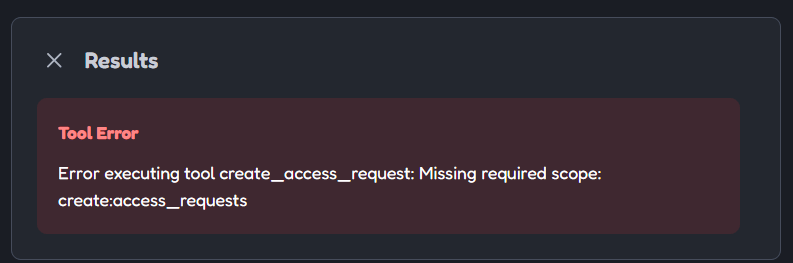
When the client requests only
read:access_requests, the read operation succeeds whilecreate_access_requestis denied because the token does not containcreate:access_requests.
This lab demonstrates how Auth0 can secure an MCP server with OAuth 2.1 and enforce granular authorization at the individual tool level. The result is a simple but practical model for protecting AI-accessible operations with scoped bearer tokens and explicit user consent.
 Authentication Lab
Leave a comment